

Import Site Wizard in Expression Web
You can NOT have more than one instance of Expression Web running or this process will not work.
There may come a time when you need to "get" a site from the web that you do not have the credentials to logon and download or publish to your computer. Perhaps you are helping someone or just want to play around and see how a site works. The Import Site Wizard is a tool you can use.
Step 1: Create a new empty website on your computer. If you need help with that, follow
Create Website in Expression Web.
Expression Web 4.0
NEW Video of the Import Site Wizard process. The video is a wmv file which will open in Windows Media Player.
Step 2: Site > Import > Import Site Wizard
From the Connection Type select "HTTP"
Location: [site Url]
Click Next

Step 3: Select your destination web location. The default is the site you have open with Add to current site ticked
Click Next

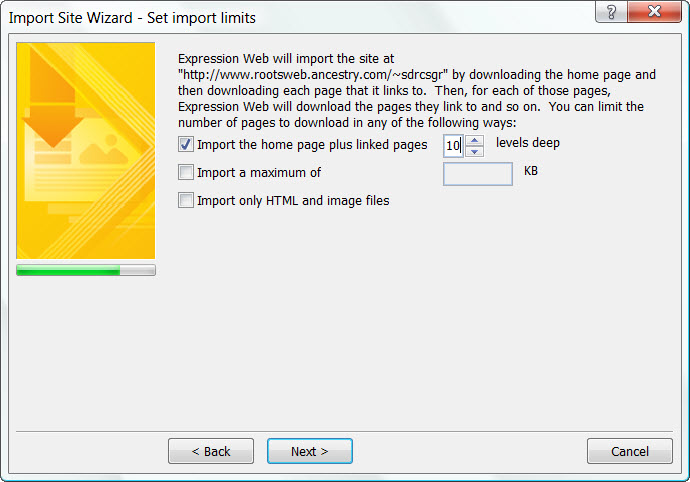
Step 4: Set the Import limits, You can tick any of the following choices:
Import the home page plus linked pages ? levels deep
Import a maximum of ?KB
Import only HTML and image files.
Click Next
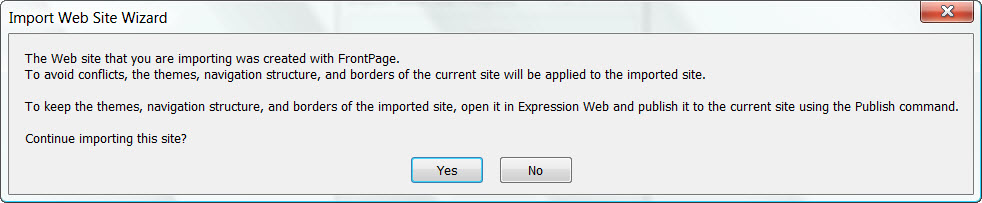
Step 5: If the site you are importing was created in FrontPage you will receive the following message.
The web site you are importing was created with FrontPage
To avoid conflicts, the themes, navigation structure, and borders of the current site will be applied to the imported site.
To keep the themes, navigation structure of the imported site, open it in Expression Web and publish it to the current site using the Publish Command.
Continue importing this site?
If the site was NOT created in FrontPage, you will not see this message.
Click Yes to continue.
Step 6: The site now resides on your hard drive and you can edit it as needed or test investigate it to see how it works.
NOTE: If you are importing a site from a server that adds code to your pages as is the case of Rootsweb, you will also have the Rootsweb banners as part of the site. Delete these and the code that goes with them as you do NOT want these as part of your local site.
My thanks to Cheryl Wise of by-expression.com for reminding me about this tool.

Copyright 2010 Expression Web Tutorials & Templates
Written and Tested April 23, 2010
Expression Web 4.0 Tutorials 2nd Edition from Install to Publish, a FREE EBook by Pat Geary.

Expression Web has a group on Facebook. If you are a FB user, come join us.

Disclosure: This is an affiliate link, which means that if you visit Bluehost.com through this link and purchase this product, I’ll get a commission.

April 2007 - April 2013