

Center Pages in Browser Window
If you are going to use a fixed width template - one that does NOT resize when the browser window changes size - then you may want to have the page centered in the browser window. This is especially true if the viewer is using their browser full screen. You can achieve the same results using a liquid layout by specifying the width of the container using a percentage for the width. NOTE: If you are using an absolute positioned <div> tag, this solution will NOT work.
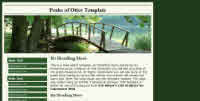 versus

Before you start, there are three things required for this to work:
- A valid doctype (Expression Web does this by default)
- A container with a defined width (typically a div with an ID applied to it.) The ID can be named whatever you want but might be container or wrapper.
- In the style definition for the container you need to have margin-left: auto; and margin-right: auto;
Center a <div>
The <div> tag defines a division or a section in an HTML document. You can center a <div> on a page by using the code shown below. Copy and paste it into your external style sheet
CSS
#outerWrapper { margin: 10px auto 10px auto;
width: 740px;
border: 1px
solid #441B10;
padding: 10px;
background-color: #f8faef; }
or between the <head> tags of your page.
<style type="text/css">
<!--
#outerWrapper { margin: 10px auto
10px auto;
width: 740px;
border: 1px solid #441B10;
padding: 10px;
background-color: #f8faef; }
-->
</style>
XHTML
Your XHTML code would look like this
<body>
<div id="outerWrapper">
<h1>Heading Tag Content</h1>
<p>Some
content here.</p>
<p>More content here.</p>
<p>More
content here.</p>
</div>
</body>
Any of the fixed width or flexible width templates on this site use some form of these styles.
Center a <table>
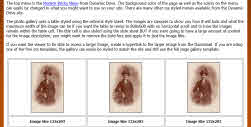
The photo gallery template uses a table centered on the page as the container for the images and descriptions. You can achieve this result by using the following style rules for your table.
CSS
#gallery {
border-collapse: separate;
margin: 10px auto 30px auto;
border: 2px ridge #CCCCCC;
width: 99%; }
XHTML
<body>
<table id="gallery>
<tr>
<td>Content</td>
</tr>
<table>
</body>
Read more on using the HTML <div> tag
Centering in CSS: A Complete Guide

Copyright
2009 Pat Geary of
Expression Web Tips, Tutorials, and Templates All Rights Reserved
Updated:
April 2012
Expression Web 4.0 Tutorials 2nd Edition from Install to Publish, a FREE EBook by Pat Geary.

Expression Web has a group on Facebook. If you are a FB user, come join us.

Disclosure: This is an affiliate link, which means that if you visit Bluehost.com through this link and purchase this product, I’ll get a commission.

April 2007 - April 2013