Installing Expression Studio 4
The Expression Studio or Expression Web 4 free upgrade is only available to users who have purchased the retail version of Expression Web 3 or Studio 3 (e.g., from Digital River, from the Microsoft Store, a retail box copy, etc.). If you purchased Expression Web 3, download the trial from one of the links listed below.
Owners of Expression Web 3 can upgrade for free to Expression Studio 4 Web Professional and owners of Expression Studio 3 can upgrade to Expression Studio 4 Ultimate.
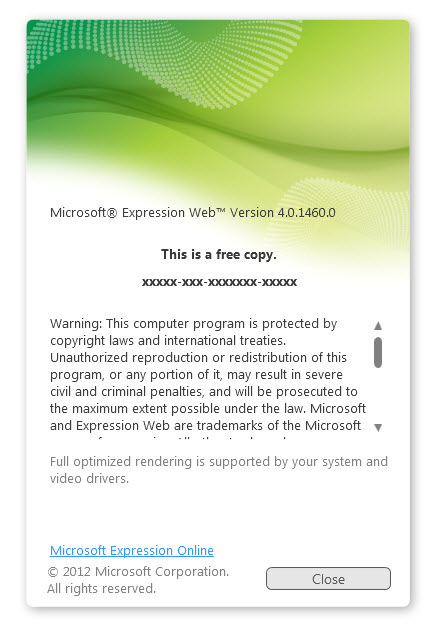
How do you know if your version of Expression Web 3 qualifies? On the 'Help' menu, select 'About Microsoft Expression Web'. Look at the Product number on that box. The number will be in the form a 5-digit number, a dash, a 3-digit number, a dash, etc. If that 3-digit number is 617 or 618 you’re eligible for the free upgrade. If it is any other 3-digit number, you are not.
Licensing
Expression Web 4 can be licensed and activated on, at most, two systems, e.g., a laptop and a desktop. If you need to reinstall on one of those systems, e.g., because you reinstalled Windows, you should be able to reinstall Expression Web 4 and reactivate at that time.
Download Links:
Download Expression Studio Click Try Now > Select the Product (Expression Studio 4 Ultimate OR Expression Studio 4 Web Professional) > Download 60 Day Free Trial > Click Download (NOTE: If the download does not start, click Start Download.)
Note: Screenshots were done installing Expression Studio Ultimate on a Windows Vista machine.
Installation
Earlier versions of Kaspersky Internet Security can cause a crash in Expression Web 4 at launch. If you are running Kaspersky Internet Security and Expression Web 4 crashes on launch, download the critical fix issued on July 20, 2010, by Kaspersky or upgrade to the latest version. (http://www.kaspersky.com/kis_latest_versions.)
NOTE: Before you can install Expression Studio (either version), you will need to have .NET Framework 4.0 installed. You may want to go ahead and download and install it as your computer will need a restart after installation. If you do not install it first, then you will be prompted to do so BEFORE you can continue with the Studio installation.
Step 1: Once you have downloaded the program file, double click on the file to start the installation. You will receive the normal User Account Control warning box. Click Yes. You will see the screen shown below as the install process starts.
NOTE: If your are installing a retail version of Expression Studio 4 Web Professional OR Expression Studio 4 Ultimate, you will be prompted at this point to enter your Product Code. You will NOT receive this prompt if you are installing the trial version.
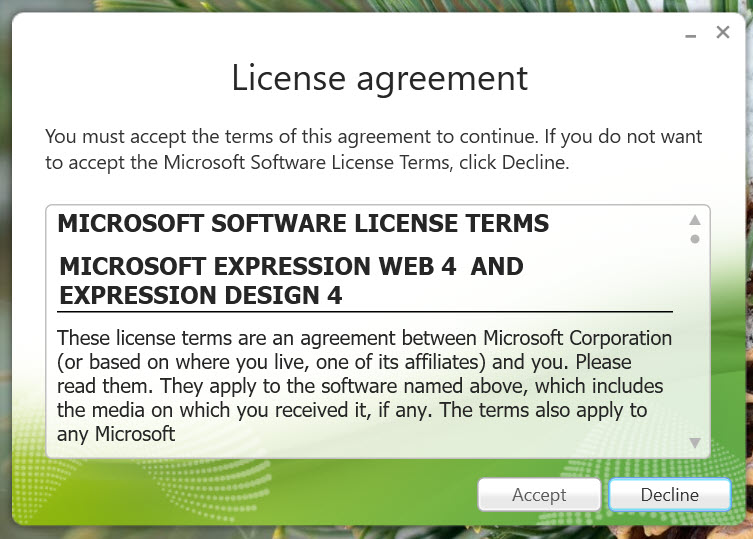
Step 2: Accept the license agreement.
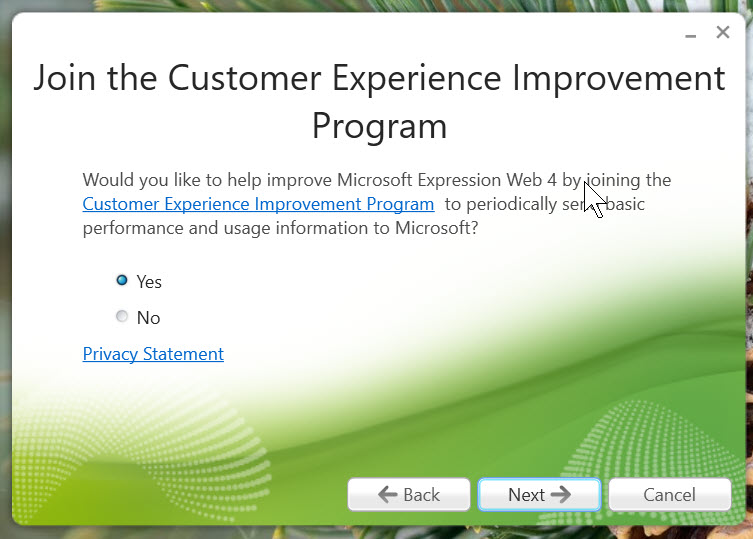
Step 3: Choose whether you wish to join the Customer Experience Improvement Program.
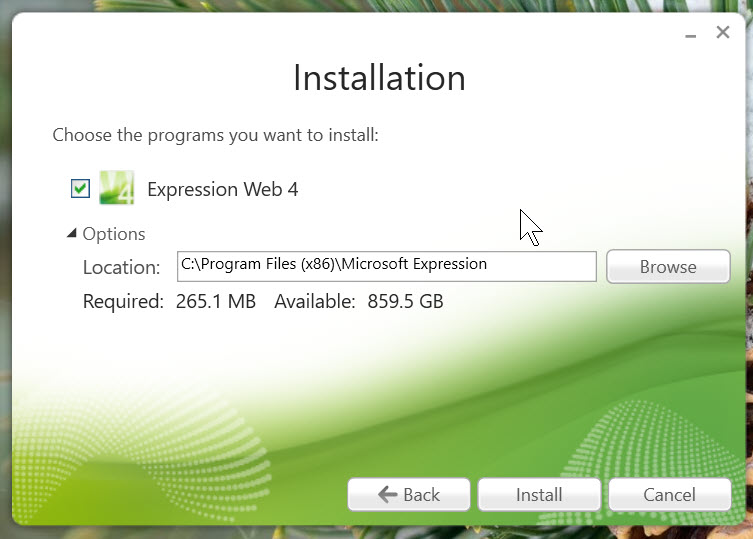
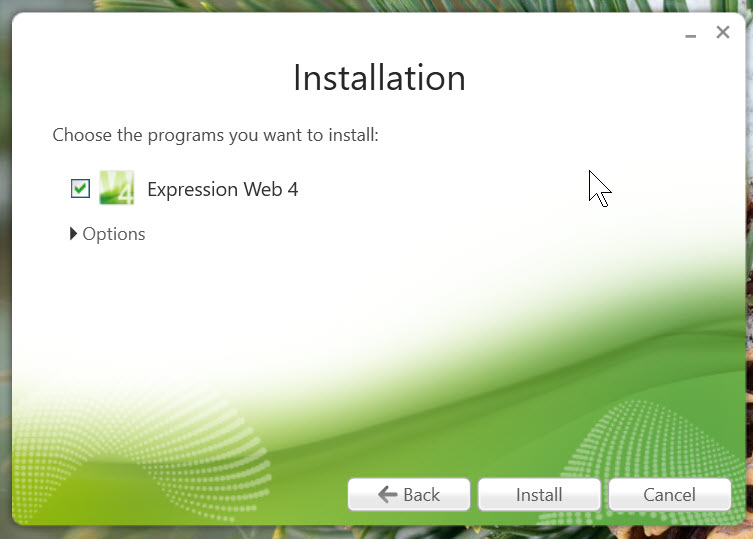
Step 4: Select which of the programs you wish to install.
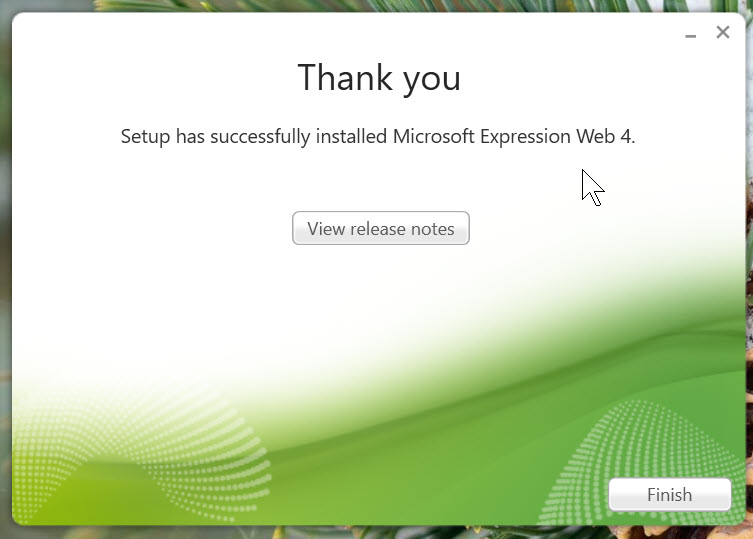
Step 5: Once all of the program you have selected are installed, you will see the finish setup screen. You can either view the Release Notes of click Finish.
Activating Expression Studio
Step 6: Launch Expression Web 4.0. Click on the 'Help' menu and choose 'Activate Product.' You can then check 'About Microsoft Expression Web' from the Help menu and you should see that you now have a fully licensed copy.
Important: If you took advantage of the free upgrade from version 3 to version 4, save your copy of version 3! If you need to reinstall Expression Web 4, after you have reformatted your computer, for example, you will need to first install and license version 3, then install version 4.
If you have not reformatted your computer but only need to reinstall the program, you should not have any problem, as the version 3 license will still be in the Windows license store even if you had previously uninstalled version 3.
Expression Web 4 DOES NOT REPLACE previously installed version of the application on your program. It will be installed alongside of the versions you currently have. All will be accessible from your Start > Programs > Microsoft Expression menu. View Screenshot
Once you have installed Expression Web 4, make sure you also install both Service Pack 1 (SP1) and Service Pack 2 (SP2) for Expression Web 4.
IMPORTANT: If you have any problems installing Expression Web, please refer to Forum FAQ and Guidelines - Start Here and scroll down to 'Installation FAQs' and 'More Microsoft Resources for Installation Problems'
Next Step: Setting Up Expression Web 4 ![]()

Copyright © 2010 Pat Geary of Expression Web Tutorials and Templates, All Rights Reserved
Written June 2010
Revised August 2011